Secrets
Manage your Secrets in the Phase Console. This page covers the practical steps for creating, editing, importing, sharing, and deploying Secrets through the Console UI.
Create a Secret
To create a Secret in a specific Environment, click the "New Secret" button. This will create a new empty secret, with a blank key and value. Enter the desired key and value and click "Deploy" to save your changes.
Secret keys cannot be empty, or share the same key as another secret in the current environment at the same path.
Changing a Secret's Type
You can change a secret's type by hovering over the secret row and using the type selector in the key field. Type changes are staged like any other edit and are only saved when you deploy. For details on what each type means, see Platform > Secrets > Secret Types.
Once a sealed secret is saved, its type is permanently locked. You cannot unseal a secret or change it to another type. To replace it, delete the secret and create a new one.
Import Secrets
You can import secrets into your Apps and Environments by dragging-and-dropping .env files or selecting them from your filesystem.
By default, Phase will parse all key-value pairs in your .env files, as well as any comments. You can also open the "Import secrets" menu for more detailed import options as well as a text area to simply paste the contents of your .env file.
If one or more keys already exist, their respective values will automatically be updated. You can review the changes in the deploy preview before deploying.
Here's a quick demo of how to import secrets into a single environment:
You can also import .env files into multiple Environments simultaneously from the Secrets tab. You'll be able to decide which specific environments to import into, and whether or not to include values and comments in each respective Environment.
Override a Secret (Personal Secrets)
You can override the value of a Secret with a Personal Secret. For details on how personal overrides work, see Platform > Secrets > Personal Secrets.
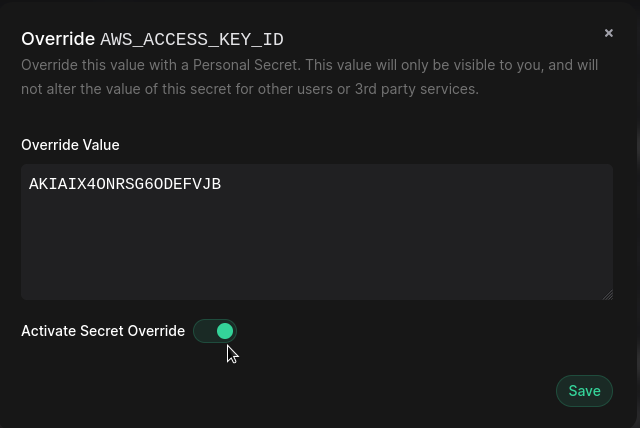
To create a Personal Secret, click on the "Override" button for a secret.

Enter the value you wish to override this secret with. You can control whether the override is active using the "Activate Secret Override" toggle switch.
Tag a Secret
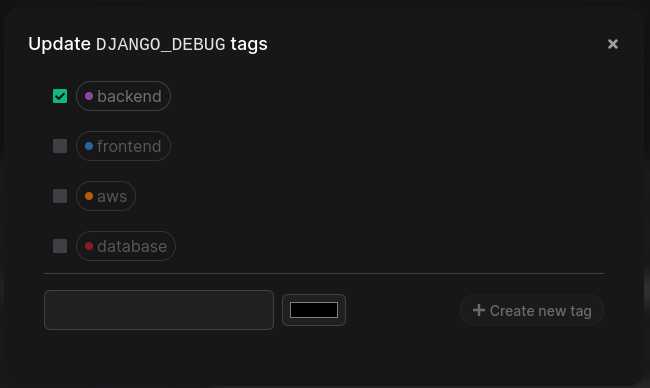
To apply a tag to a Secret, hover on the Secret row and click on "Tags" in the secret key input box to open the Tags dialog. You can select one or more tags to apply to this Secret, or create new Tags if required.
All tags applied to a secret will be displayed inline with the secret name.
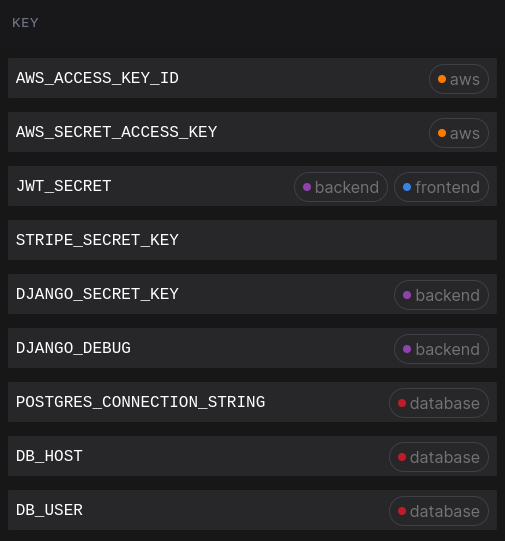
Note: Secret tags are not saved until you "Deploy" changes to the Environment
Add Comments to a Secret
To add comments to a Secret, hover on the Secret row and click on the "Comment" button in the value input box to open the comment dialog. Type your comment and close the dialog.
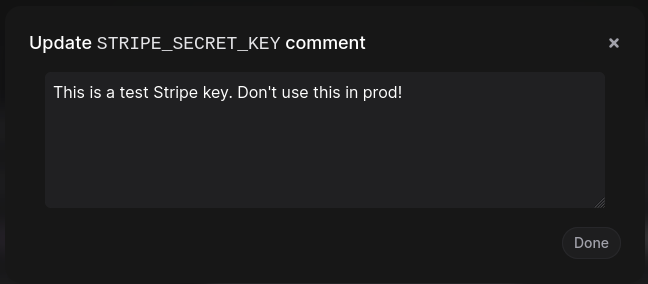
Secrets with comments will be identifiable by a green comment icon.

Note: Secret comments are not saved until you "Deploy" changes to the Environment
Share a Secret
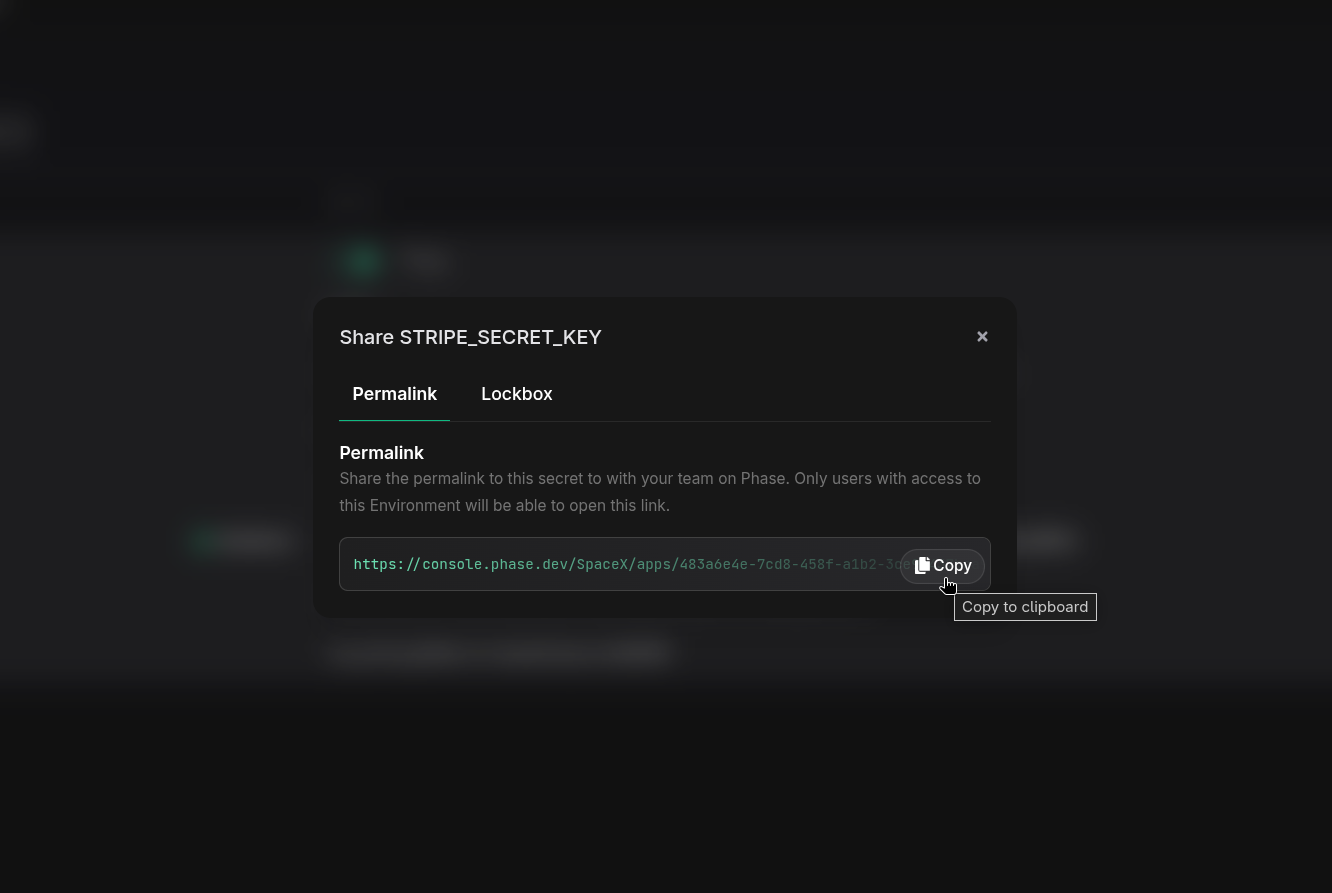
You can share secrets via a Permalink (for users with existing access) or a Lockbox (for external sharing). For details on how each method works, see Platform > Secrets > Sharing Secrets.
Hover over the secret row and click the "Share" button to see the menu.
Permalink
Click "Permalink" to copy a link to this specific secret.
Lockbox
Click "Lockbox" to create a single-use encrypted share link. You can set the value, expiry time, and maximum number of views.
View Secret History
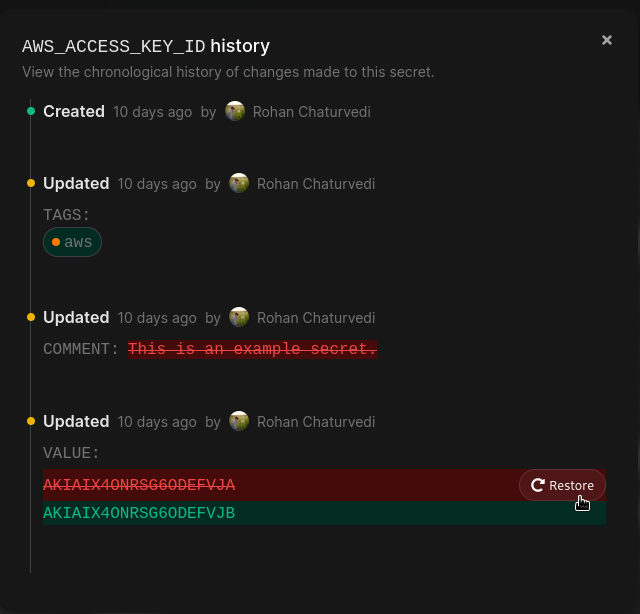
Hover on the Secret row and click the "History" button to view the entire history of a Secret. This dialog shows a timeline of changes with timestamps and user information.
You can restore a previous value by clicking the "Restore" button, which will be saved when you next Deploy.
Search for Secrets
You can search for a secret by typing into the search bar in a single environment or across all environments in the App Secrets tab.
Global Secret Search
Search across all Apps, Environments, and Folders in your Organisation via the command palette. Results are listed with full App, Environment, and Path context.
All secret searches are performed client side in your browser regardless of App encryption mode. Secret values are not fetched or decrypted when performing searches.
Update a Secret
Find the secret row and start typing the new key or value. You may reveal the value by clicking the "Reveal" button. Boolean secrets can be flipped with the toggle switch, preserving the existing case.
Secrets that have been updated will be highlighted in yellow. Once finalized, click "Deploy" to save.
Delete a Secret
Hover on the Secret row and click the red trashcan button. The row will be highlighted in red to indicate selection for deletion. You can select multiple secrets and deselect with the restore button. Click "Deploy" to confirm deletion.